


How-to guide · About 5 minutes
How to use the Room Planner: eight steps from room to basket
Choose a room, place your plants, pick pots, check the light, then add the whole plan to your basket or keep a copy.
Eight steps
Plan a room from scratch
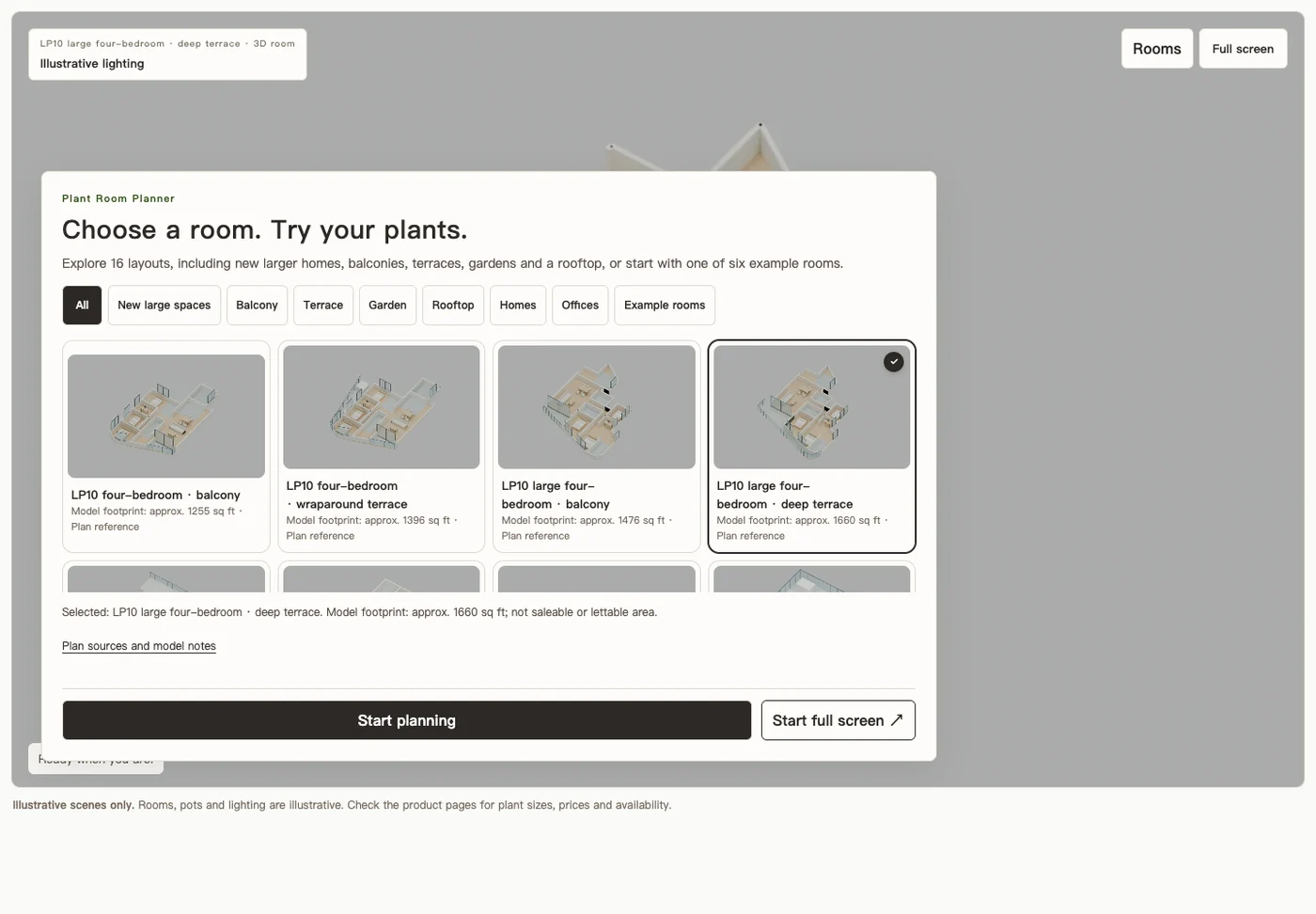
Choose a room or layout
The planner opens on a set of room cards. Filter by All, Larger layouts, Balconies, Terraces, Gardens, Rooftop, Homes, Offices or Example rooms, pick the closest match to your space and choose Start planning, or Start full screen for a larger view. You can change room later with Rooms in the top corner.
Set the window lighting
In every scene, set the Window direction, what is Outside the window (open view or nearby buildings) and the Time of day. You can change these at any time. Published-plan layouts simulate light using assumed W01 facing (plan orientation on rooftops), time and fixed-wall obstruction. These are not site measurements.
In published-plan layouts, open Windows to see window IDs, widths, assumed directions and the windows visible from the selected plant. Fixed-wall visibility and distances follow the model; they are not measured light levels.
Add plants
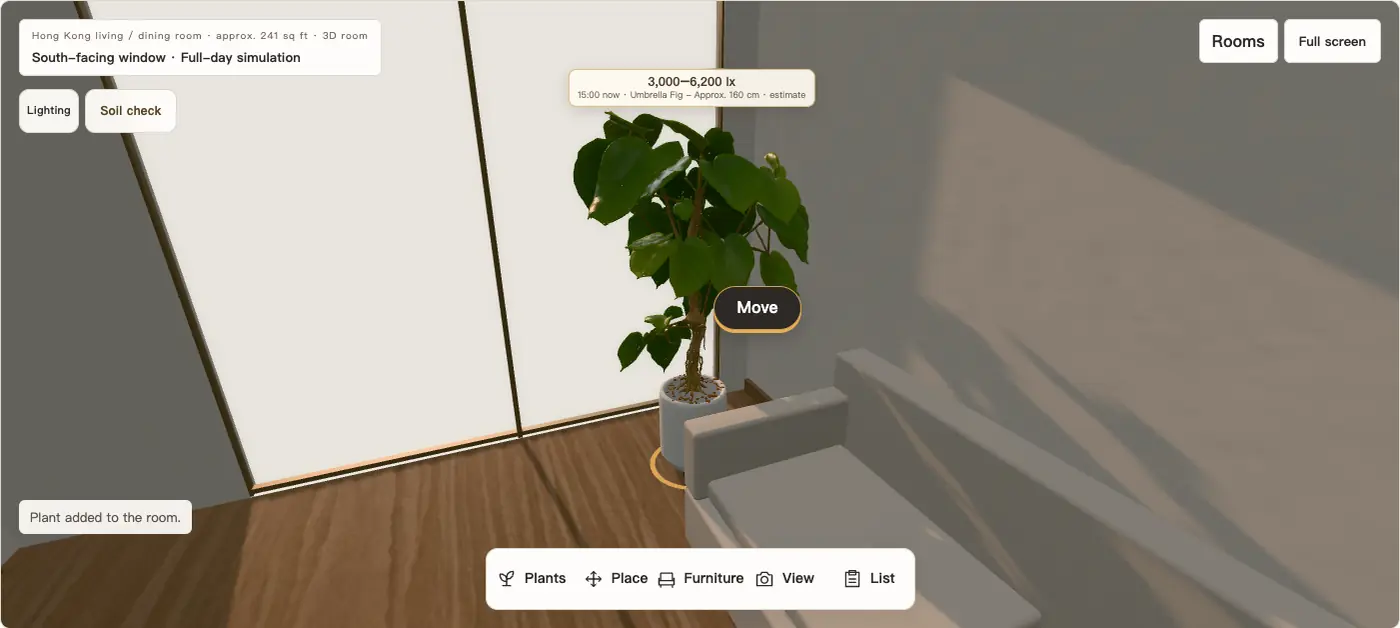
Once the room loads, the plant panel opens (on a phone, tap Plants at the bottom). Search by name or filter by height, then press + on a card to place the plant. Add up to 20 plants per room, including more of the same one.
Position and fine-tune
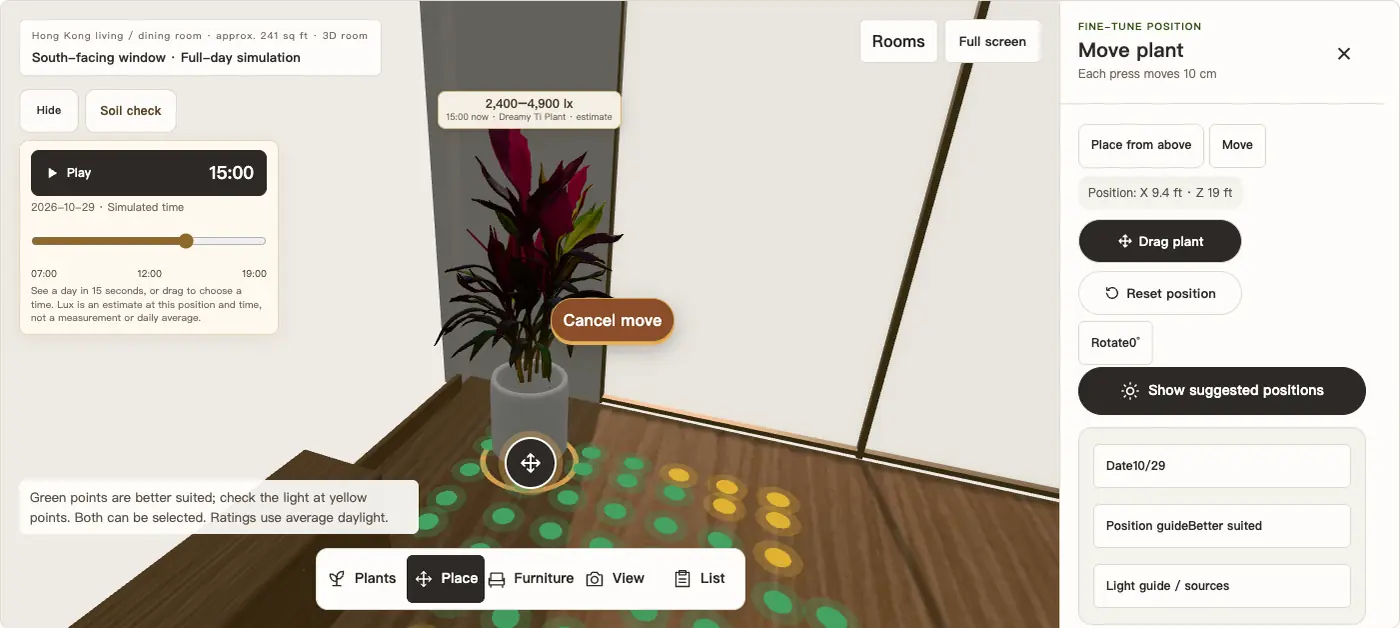
Open Place to drag a plant, place it from above, or nudge it in 10 cm steps, and rotate it from 0 to 360°. Plants and furniture avoid each other automatically, and Reset position returns the plant to its start. On a computer, hover over a plant to see its selection ring and Move button.
Choose a pot and saucer
In the plant panel, select the plant under Selected plants, then choose a pot and saucer. Each plant can have one pot and one saucer, and the change shows in 3D straight away.
Check the light and suggested positions
Open Lighting to play a 15-second day, or drag the timeline to a time; an estimated lux range appears above the plant. In Place, choose Show suggested positions to see coloured dots: green is better suited, yellow means check the light, blue is dim and coral risks direct sun. Tap a dot to move the plant there. Use Date to compare today, the seasons or any day, and Soil check for a rough interval between soil checks.
Arrange furniture and views
Furniture lets you add illustrative pieces, move them in 10 cm steps, turn or remove them; Reset all furniture restores the room, and changing room clears them. View offers the whole room, a plant close-up, a side view, a top-down view and Reset view.
Save, share or order
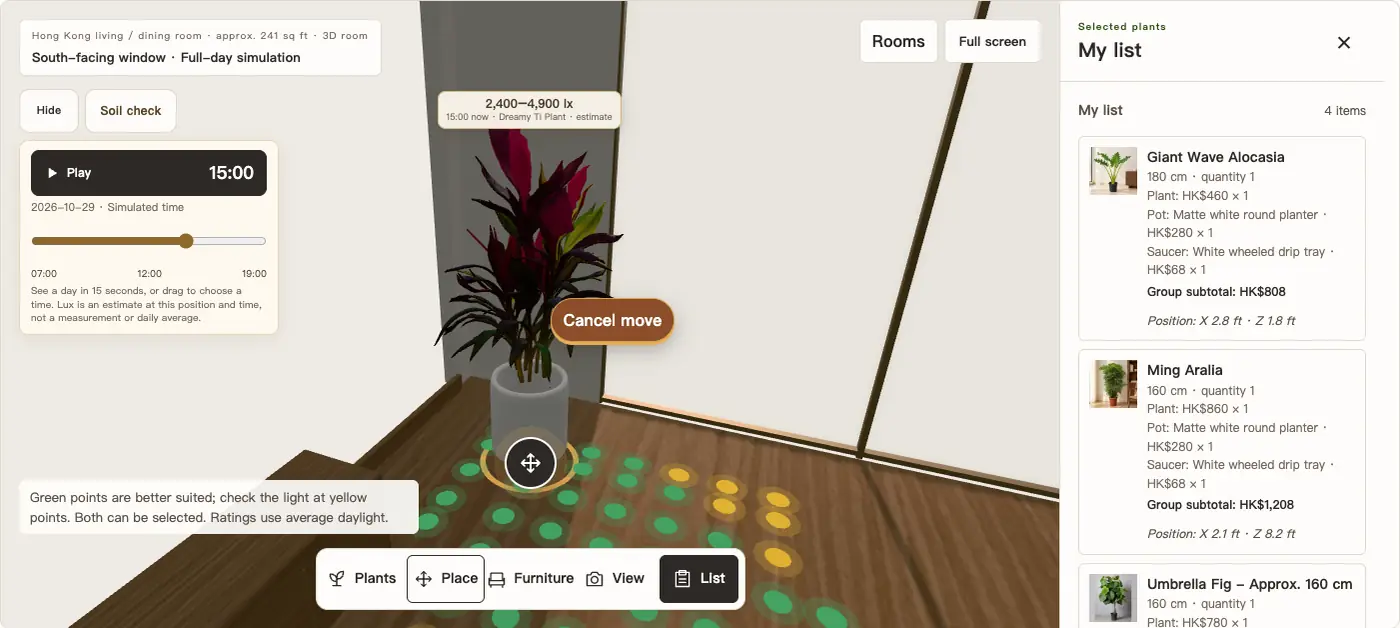
Open List to see each plant with its pot, saucer and subtotal. Then choose Add all to basket (products, prices and stock are checked again), Download plant list, Download room image, Print care guide / save PDF, or Ask about this list on WhatsApp, which opens a draft for you to review and send. Your plan stays in the same browser, so you can continue it next time.
Controls
Desktop and mobile controls
| To | Desktop | Mobile |
|---|---|---|
| Orbit the view | Drag with the mouse | Drag with one finger |
| Pan | Right-click and drag | Drag with two fingers |
| Zoom | Scroll wheel | Pinch, or tap + / − |
| Select a plant | Click it, or pick it under Selected plants | Tap the plant |
| Move a plant | Place, or the handle beside the plant | The Place tool |
| Scroll the page | Scroll outside the 3D view | Tap Stop controls first |

Tips
Four habits for a more reliable plan
Measure the real spot
The rooms are representative. Before ordering, measure the width and ceiling height where the plant will go and compare them with its listed height.
Place from above
In larger flats, use the top-down view to read the layout, then Place from above. It is quicker than dragging at an angle.
Compare the seasons
Winter sun sits lower in Hong Kong and nearby buildings block more of it. Compare summer and winter dates before choosing the window or the middle of the room.
Use a computer for many plants
A phone is fine for a quick sense of scale. For five or more plants, or an office plan, fine-tuning is easier on a larger screen.
Troubleshooting
Common questions while planning
The room does not load or stays blank. What should I do?
The 3D room needs a browser with WebGL. Use an up-to-date Chrome, Safari or Edge with hardware acceleration switched on. If the room has not loaded within 30 seconds, the preview returns with an error message and a retry option.
I cannot scroll the page on my phone.
The 3D view responds to your fingers. Tap Stop controls to scroll the page normally, and turn the controls back on when you want to move the view again.
Why is Show suggested positions greyed out?
Select a plant first. Suggestions are only available for plants with a checked light preference, such as the Dreamy Ti Plant, in scenes with window data. Published-plan layouts use assumed facing and fixed-wall obstruction; rooftops use an outdoor estimate.
Some plants disappeared when I changed room.
Changing room keeps your plants and tries to place them again. Any plant without a valid spot in the new room stays on your list as waiting to be placed and is hidden in 3D. Open Place to choose a new spot for it.
How many plants can I add?
Up to 20 plants per room, each with up to one pot and one saucer.
The price changed when I added my plan to the basket.
Prices and stock are checked against the latest product details when you add to the basket. The basket and checkout show the final amount. If the result is unclear, you will be asked to check your basket first; nothing is added twice automatically.
More detail
Features, rooms and limits
Place your first plant now
Free to use. No account needed.
